PojavLauncher Lag Fix: Best Settings for Maximum FPS on Mobile
Running a full-scale PC application like Minecraft: Java Edition on a mobile phone processor is no small feat. While PojavLauncher does an incredible job of bridging the gap, lag, stuttering, and low FPS are still common complaints — especially on low-end and mid-range Android devices.
The good news? Most lag issues in PojavLauncher are completely fixable with the right combination of in-game settings, launcher configurations, and device optimization.
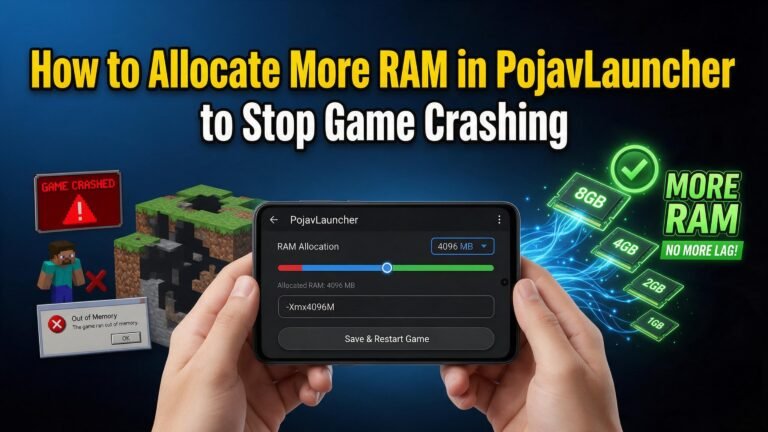
In this guide, I’ll share the best PojavLauncher settings for maximum FPS on mobile so you can turn your choppy, unplayable experience into smooth, responsive gameplay. And if your game keeps crashing instead of lagging, you may want to check out my complete guide on how to allocate more RAM in PojavLauncher to stop game crashing — that solves 90% of the “not working” problems.
Why Does PojavLauncher Lag on Mobile?
Before we dive into the fixes, let’s understand what’s actually causing the lag:
- Weak mobile GPU — phones have integrated graphics, not dedicated ones
- Limited RAM — Java Edition is a memory-hungry game
- High render distance — loading more chunks = more work for your phone
- Shaders and mods — they look great, but they tax the hardware heavily
- Background apps — they compete for CPU and RAM
- Overheating — thermal throttling reduces performance dramatically
- Wrong launcher settings — default settings aren’t optimized for mobile
The solution is to reduce the load on your device while keeping the game looking as good as possible.
Step 1: In-Game Video Settings (The Biggest FPS Boost)
These are the single most important changes you’ll make. Open Minecraft and go to:
Options → Video Settings
Best Video Settings for Maximum FPS
| Setting | Recommended Value | Why It Helps |
|---|---|---|
| Graphics | Fast | Removes fancy leaves, clouds, and transparency |
| Render Distance | 8–10 chunks | Most impactful setting — every chunk added costs FPS |
| Smooth Lighting | OFF | Huge performance hit on low-end devices |
| VSync | OFF | Removes input lag and screen-tearing |
| Max Framerate | 60 (or 30 for weak phones) | Caps GPU usage |
| View Bobbing | OFF | Tiny boost, smoother visuals |
| GUI Scale | Auto or Normal | Smaller UI = less rendering work |
| Particles | Minimal | Reduces particle effects |
| Clouds | OFF or Fast | Cloud rendering is expensive |
| Entity Shadows | OFF | Shadows on mobs and players add up |
| Mipmap Levels | 0 | Faster texture loading |
| Chunk Updates | 1 | Limits per-frame chunk loading |
| Fullscreen | ON | Saves battery, slightly better FPS |
| Use VBO | ON | More efficient chunk rendering |
| Biome Blend | 1×1 | Reduces color blending work |
| FOV | 70–90 | Default 90 is fine, but lower = slight boost |
💡 Pro Tip: The two biggest FPS killers are Render Distance and Smooth Lighting. Start by lowering those, and you’ll see an instant improvement.
Step 2: PojavLauncher Settings (JVM Arguments)
Tweaking the Java arguments inside PojavLauncher itself can dramatically improve performance.
How to Access PojavLauncher JVM Settings
- Open PojavLauncher
- Tap the ⚙️ gear icon
- Find “Java arguments” or “JVM arguments.”
- Edit the values
Best JVM Arguments for Performance
Replace the default arguments with this optimized setup:
text-Xmx2G -Xms1G -XX:+UseG1GC -XX:+ParallelRefProcEnabled -XX:MaxGCPauseMillis=200 -XX:+UnlockExperimentalVMOptions -XX:+DisableExplicitGC -XX:G1NewSizePercent=20 -XX:G1MaxNewSizePercent=30 -XX:G1HeapRegionSize=8M -XX:G1ReservePercent=20 -XX:G1MixedGCCountTarget=4 -XX:InitiatingHeapOccupancyPercent=15 -XX:G1MixedGCLiveThresholdPercent=90 -XX:G1RSetUpdatingPauseTimePercent=5 -XX:SurvivorRatio=32 -XX:+PerfDisableSharedMem -XX:MaxTenuringThreshold=1 -Dfml.ignorePatchDiscrepancies=true -Dfml.ignoreInvalidMinecraftCertificates=true -XX:+UseCompressedOops
What this does:
-Xmx2G -Xms1G— Allocates 2GB max, starts with 1GB (prevents memory spikes)-XX:+UseG1GC— Uses the Garbage-First garbage collector (best for Minecraft)- The rest fine-tunes memory management to reduce stuttering and lag spikes
If you don’t want to copy all of that, just use:
text-Xmx2G -Xms1G -XX:+UseG1GC
⚠️ Remember: If you’re still crashing instead of just lagging, your issue is probably RAM-related, not settings-related. Read my RAM allocation guide to fix that first.
Step 3: Install OptiFine (Single Biggest Performance Mod)
OptiFine is a mod that adds dozens of performance options Minecraft doesn’t have by default. It’s compatible with vanilla, Forge, and Fabric.
OptiFine Performance Settings
After installing OptiFine, go to Options → Video Settings → Performance:
| Setting | Recommended Value |
|---|---|
| Chunk Loading | Smooth |
| Chunk Updates | 1 |
| Lazy Chunk Loading | ON |
| Fast Math | ON |
| Fast Render | ON (if your device supports it) |
| Smart Animations | ON |
| Smooth FPS | ON |
| Smooth World | ON |
| Load Far | OFF |
| Preloaded Chunks | 4–8 |
| Chunk Updates per Frame | 1 |
| Dynamic Updates | ON |
For a complete walkthrough, see my guide: How to Install OptiFine, Forge, and Fabric in PojavLauncher.
Step 4: Device Optimization (Free Up Resources)
Even with perfect game settings, your phone’s background activity can ruin performance.
Before Launching Minecraft:
- Close all background apps
- Recent apps → Swipe them all away
- Turn off battery saver mode
- It throttles your CPU aggressively
- Disable Bluetooth and Wi-Fi scanning (if not needed)
- Turn on Performance Mode (if your phone has it)
- Samsung: Settings → Device Care → Performance Mode
- Xiaomi: Settings → Battery → Performance Mode
- OnePlus: Settings → Battery → Performance Mode
- Charge your phone or keep it above 30%
- Low battery = automatic throttling
- Remove your phone case (during long sessions)
- Prevents overheating, which causes thermal throttling
- Restart your phone before playing
- Clears RAM cache and background processes
Step 5: Use Game Booster Apps (Optional but Helpful)
Apps like Game Booster, GFX Tool, or your phone’s built-in Game Mode can:
- Free up RAM automatically
- Block notifications during gameplay
- Prioritize CPU/GPU for the game
- Clear cache before launching
⚠️ Note: Be careful with GFX tools. If used incorrectly, they can cause crashes. Stick to the in-game settings and the PojavLauncher JVM arguments first.
Step 6: Use Sodium or Lithium (For Fabric Users)
If you’re running Fabric, install these performance mods:
| Mod | What It Does |
|---|---|
| Sodium | Modern rendering engine (massive FPS boost) |
| Lithium | Optimizes game physics, ticking, and AI |
| Phosphor | Optimizes lighting engine |
| FerriteCore | Reduces RAM usage |
| ImmediatelyFast | Speeds up immediate-mode rendering |
Combined, these mods can double or triple your FPS on mid-range devices. They’re installed just like any other Fabric mod — see my mod installation guide for steps.
Step 7: Choose the Right Minecraft Version
Not all Minecraft versions perform equally on mobile.
| Version | Performance | Notes |
|---|---|---|
| 1.8.9 | ⭐⭐⭐⭐⭐ | Best performance, but outdated |
| 1.12.2 | ⭐⭐⭐⭐ | Great for modded, light on resources |
| 1.16.5 | ⭐⭐⭐ | Good balance of features and performance |
| 1.18+ | ⭐⭐ | New world generation is heavier |
| 1.20+ | ⭐⭐ | Decent if you have good hardware |
| 1.21+ | ⭐ | Newest, requires strong device |
🎯 For weak phones: Stick with 1.12.2 or 1.8.9 for the smoothest experience.
Advanced Fixes for Persistent Lag
Fix 1: Clear PojavLauncher Cache
Settings → Apps → PojavLauncher → Storage → Clear Cache
Old cache files can cause memory leaks and stuttering.
Fix 2: Reinstall PojavLauncher
If settings don’t help, a fresh install often fixes corrupted files.
Fix 3: Use a Custom Game Directory
Putting Minecraft on internal storage instead of SD card can improve loading speeds significantly.
Fix 4: Lower Texture Pack Resolution
Use 16x or 32x resource packs instead of 64x or 128x. Smaller textures = faster loading and less RAM usage.
Fix 5: Reduce Entity Counts
In multiplayer or on busy servers, limit how many entities load by:
- Installing EntityCulling mod (Fabric)
- Using Cull Leaves mod (Forge)
- Avoiding servers with hundreds of mobs
Recommended Settings Summary (Copy-Paste Ready)
For Weak Phones (3GB RAM or less)
- Graphics: Fast
- Render Distance: 6 chunks
- Smooth Lighting: OFF
- Particles: Minimal
- Clouds: OFF
- Entity Shadows: OFF
- Max Framerate: 30 FPS
- Allocate: 1.5–2GB RAM
- Version: 1.12.2 or 1.8.9
For Mid-Range Phones (4–6GB RAM)
- Graphics: Fast
- Render Distance: 10 chunks
- Smooth Lighting: OFF
- Particles: Minimal
- Clouds: Fast
- Entity Shadows: OFF
- Max Framerate: 60 FPS
- Allocate: 3GB RAM
- Version: 1.16.5 or 1.20.x
For High-End Phones (8GB+ RAM)
- Graphics: Fancy
- Render Distance: 12–16 chunks
- Smooth Lighting: ON
- Particles: All
- Clouds: Fancy
- Entity Shadows: ON
- Max Framerate: 60 FPS
- Allocate: 4–6GB RAM
- Version: 1.21+
Common Mistakes That Cause Lag
❌ Allocating too much RAM — causes more lag, not less
❌ Leaving 50 apps open in the background
❌ Playing while charging in a hot room (overheating)
❌ Using 128x resource packs on a weak phone
❌ Installing 200 mods on 3GB of RAM
❌ Keeping render distance at 32 chunks (the default is way too high for mobile)
❌ Forgetting to restart the phone for days
Frequently Asked Questions (FAQ)
What FPS should I expect on mobile?
Most devices get 30–60 FPS with optimized settings. Anything above 30 is smooth for Minecraft.
Will OptiFine work on iOS?
Yes, but the installation is different. Check out my guide on installing PojavLauncher on iOS without jailbreak.
Why does my game lag spikes every few seconds?
This is garbage collection — Java cleaning up memory. The optimized G1GC arguments I shared earlier fix most of this. If you’re also getting crashes, the RAM allocation guide will help.
Should I use shaders for performance?
No. Shaders reduce FPS significantly. If you want them, you’ll need a high-end phone and at least 4GB allocated. Read my shaders guide for tips.
Does lowering render distance really help that much?
Yes, more than any other setting. Going from 16 to 8 chunks can double your FPS on weak devices.
Can I play multiplayer servers with these settings?
Absolutely. Just lower the render distance when on busy servers to compensate for the extra entities and chunks loading.
Final Checklist: Lag-Free PojavLauncher
- Closed all background apps
- Disabled battery saver
- Restarted the phone
- Lowered render distance to 8–10
- Turned off smooth lighting
- Set graphics to Fast
- Installed OptiFine or Sodium
- Allocated the right amount of RAM (guide here)
- Using a compatible Minecraft version
- Phone isn’t overheating
- PojavLauncher cache cleared
Conclusion
Lag in PojavLauncher isn’t permanent. With the right combination of in-game settings, JVM arguments, device optimization, and performance mods like OptiFine or Sodium, you can get smooth, playable FPS even on older phones.